
Office 365 DKIM Setup
Head over to the Email authentication settings page in Office365.
This page will list all the domains you’ve added to your tenancy and their DKIM status.
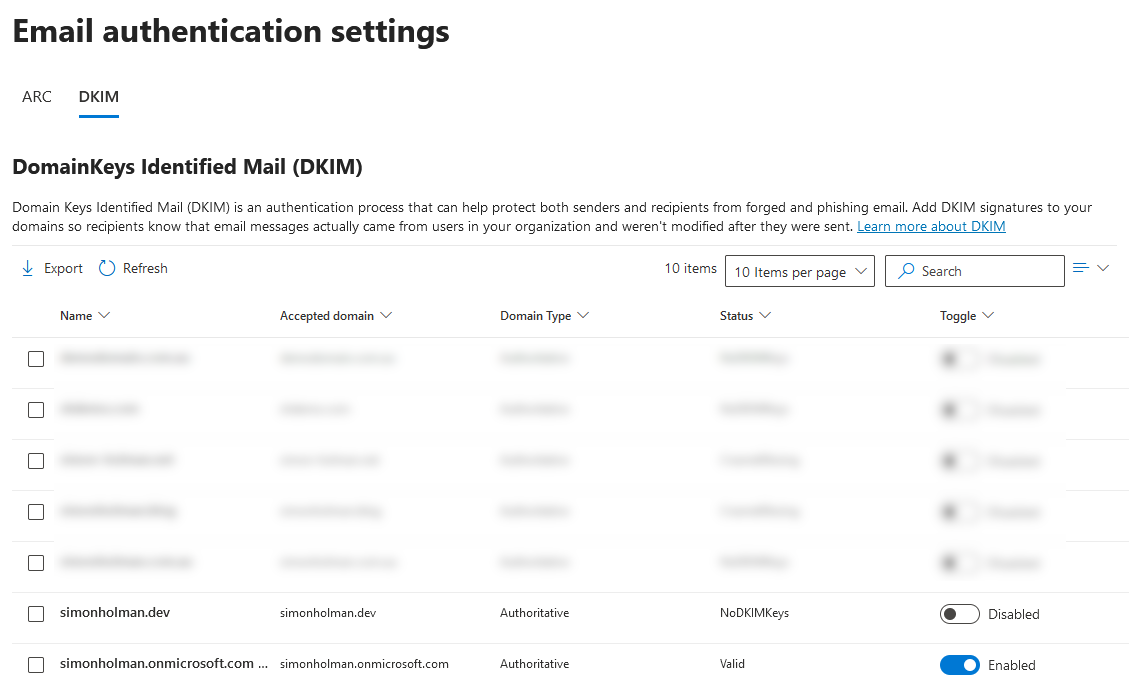
By clicking on your domain, in this instance simonholman.dev, we can see that no DKIM keys have been saved for this domain, and we have the ability to Create DKIM keys
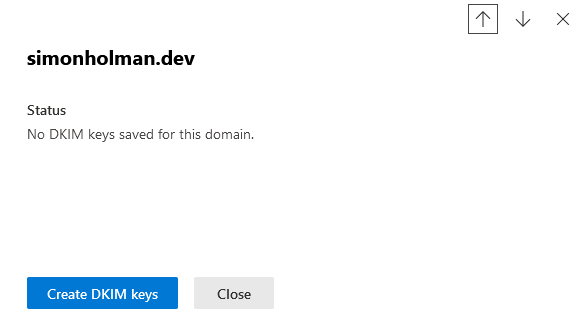
Clicking on “Create DKIM keys” and a set of keys will be generated and shown on the screen. No we head over to our DNS portal. For this domain, that’s Azure DNS.
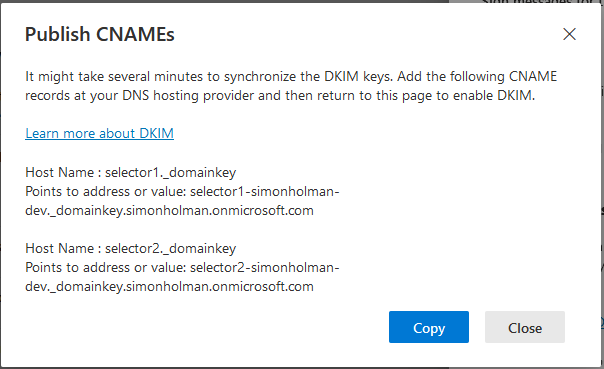
In the Azure Portal, head to your DNS zones and view your Recordsets. If you use another DNS provider, then head over to where your DNS records are managed.
We need to add a new Recordset and add the host name and value as per the instructions above. The record type is CNAME, so change that in the record type.
The first record for my domain has a hostname of “selector1._domainkey” and a value of “selector1-simonholman-dev._domainkey.simonholman.onmicrosoft.com“
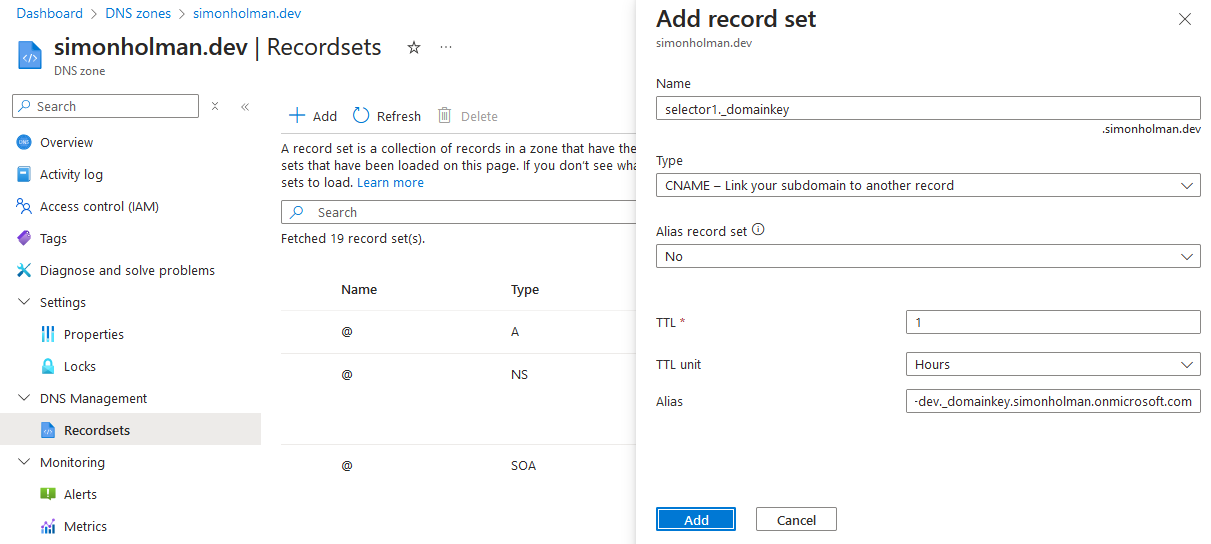
Click Add to save the recordset and add the second CNAME record as above.
When we close the DKIM record popup in Office365, we now have the ability to Enable DKIM signing with our new DNS records.
You may need to wait a little while for these DNS records to propagate prior to this enabling correctly.
When you click the toggle box to switch from Disabled to Enabled, the DNS records will be validated and you’ll see a warning like below if they have not propagated yet.
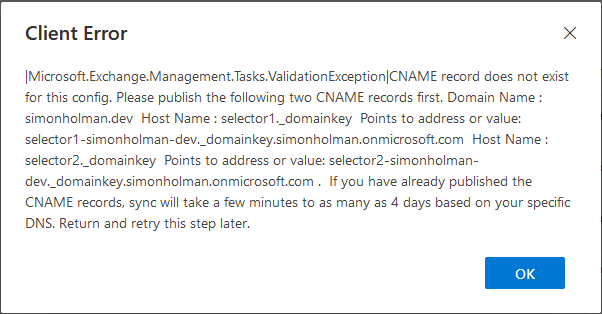
If you see this, click Ok, then wait a few hours and try again.
Once the DNS records have propagated, and you try to enable the DKIM keys again, you’ll see the following.
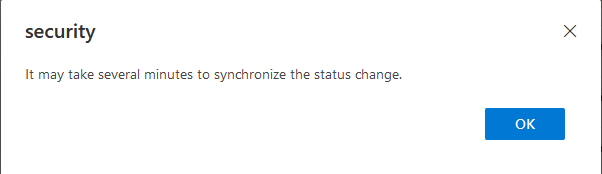
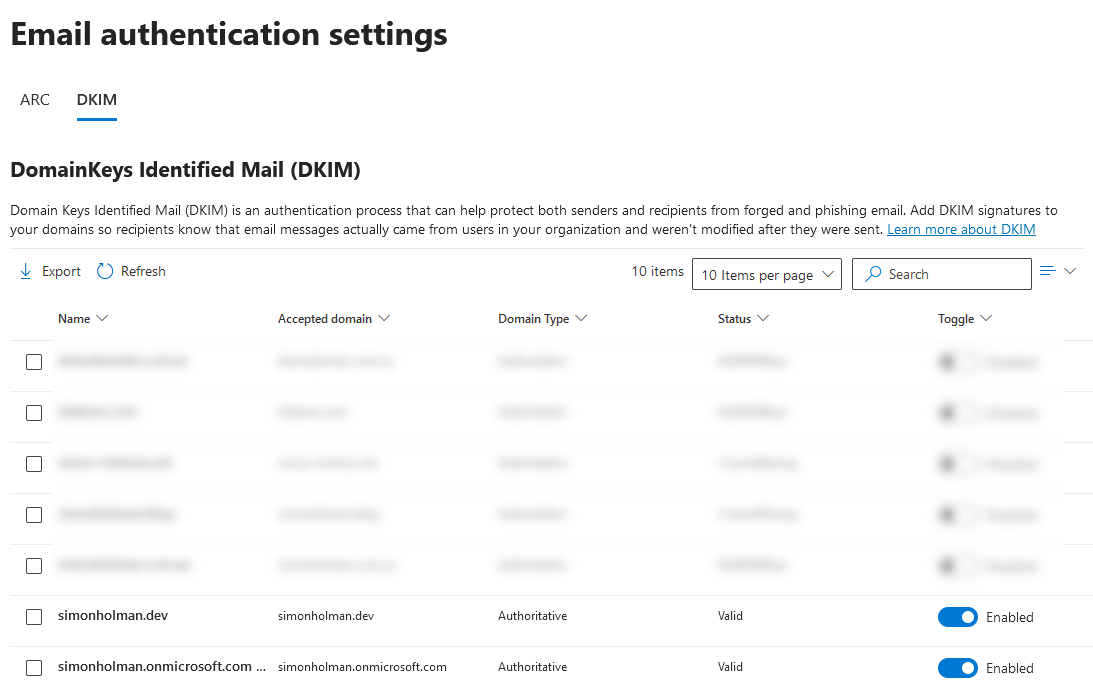
If you refresh your Email authentication settings list, you’ll see that it now shows as enabled.

Simon Holman
.NET and Azure Developer
I write about .NET, Azure, and cloud development. Follow along for tips, tutorials, and best practices.
Related Posts
Creating a DMARC record for your domain
Google and Yahoo have both announced a new set of requirements that senders must meet. Creating a DMARC record for your domain is key to proper domain security.
Manage your Microsoft365 domains with Azure DNS Zone
In this post, we'll take a look at adding a domain to Microsoft365 and configuring your DNS records with an Azure DNS Zone.
Manage your Microsoft365 domains with Amazon Route 53 hosted zones
In this post, we'll take a look at adding a domain to Microsoft365 and configuring your DNS records with an Amazon Route 53 DNS.