
Importing a CSV file into Azure SQL with Azure Functions
Importing CSV files into Azure SQL is quick and easy using Azure Functions.
By utilising LinqToSQL, reading and serialising each line of the CSV into an IEnumerable of objects only takes a few lines of code.
Start by creating an Azure Functions project in Visual Studio. I’m using Visual Studio 2019 and have ASP.NET Core 2.2 installed and have the latest Azure Functions tooling installed.
Create a function with a Blob trigger and associate to your AzureWebJobsStorage storage setting. You can configure a different storage account if you have one already configured or want them separated. This will trigger your function when a new file is uploaded to the csv-files-to-import container.
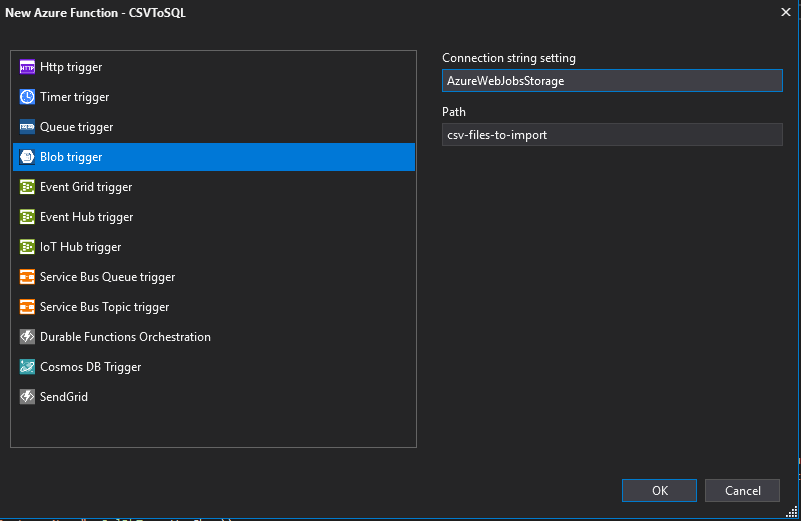 Create a new Azure Blob trigger function
Add the Nuget Package LinqToCSV.Core to your project. You can read the documentation to this at https://www.codeproject.com/Articles/25133/LINQ-to-CSV-library
Create a model to map the CSV columns to and add the CsvColumn attribute where needed to map the columns to the object properties like below. If your file doesn’t have headers, you can use the FieldIndex property rather than the Name property in your mapping
    public class CSVItem
    {
        [CsvColumn(Name = "Customer Name")]
        public string CustomerName { get; set; }

        [CsvColumn(Name = "Primary Domain")]
        public string PrimaryDomain { get; set; }

        [CsvColumn(Name = "Subscription Id")]
        public string SubscriptionId { get; set; }

        [CsvColumn(Name = "Resource Group")]
        public string ResourceGroup { get; set; }

        [CsvColumn(Name = "Instance Data")]
        public string InstanceData { get; set; }

        [CsvColumn(Name = "Tags")]
        public string Tags { get; set; }

        [CsvColumn(Name = "Usage Date")]
        public DateTime UsageDate { get; set; }

        [CsvColumn(Name = "Meter Category")]
        public string MeterCategory { get; set; }

        [CsvColumn(Name = "Meter Subcategory")]
        public string MeterSubcategory { get; set; }
    }
Next, you need to create a CsvFileDescription object containing the settings for the file import. The only three settings I used were SeparatorChar, FirstLineHasColumnNames, and FileCultureName. I set the FileCultureName to “en-au” as I knew the csv has Australian formatted dates.
Now create a CsvContext and the call the context’s Read function to read in the file. Be aware that the Read is not actually executed against the file until you trigger a read using ToList or foreach to start enumerating the results. I prefer to see my data in a list prior to executing, so I added the results straight to a list. I also know that I’m not going to have a huge number of rows, so the performance issue is not really relevant.
Once you have the records from the file into your List, or IEnumerable, you can look through and process the records into the SQL database using a regular old ADO.NET SQLCommand. You can see the full function code below. I also added a quick little null check function around the results in the list as LinqToSQL will return empty strings as null, not String.Empty
[FunctionName(\"CSVToSQL")]
        public static async Task Run([BlobTrigger("csv-files-to-import/{name}", Connection = "AzureWebJobsStorage")]Stream myBlob, string name, ILogger log)
        {
            var str = Environment.GetEnvironmentVariable("sqldb_connection");

            List<CSVItem> items;

            CsvFileDescription inputFileDescription = new CsvFileDescription
            {
                SeparatorChar = ',',
                FirstLineHasColumnNames = true,
                FileCultureName = "en-au"
            };

            CsvContext cc = new CsvContext();

            using (StreamReader sr = new StreamReader(myBlob))
            {

                items = cc.Read<CSVItem>(sr, inputFileDescription).ToList();

            }

            if (items != null)
            {
                using (SqlConnection conn = new SqlConnection(str))
                {
                    conn.Open();

                    using (SqlCommand cmd = conn.CreateCommand())
                    {
                        cmd.CommandText = @"INSERT INTO Billing (CustomerName, PrimaryDomain, SubscriptionId, ResourceGroup, InstanceData, Tags, MeterCategory, MeterSubcategory)
                                            VALUES (@CustomerName, @PrimaryDomain, @SubscriptionId, @ResourceGroup, @InstanceData, @Tags, @MeterCategory, @MeterSubcategory);";

                        cmd.CommandType = System.Data.CommandType.Text;
                        cmd.Parameters.Add(new SqlParameter("@CustomerName", SqlDbType.VarChar));
                        cmd.Parameters.Add(new SqlParameter("@PrimaryDomain", SqlDbType.VarChar));
                        cmd.Parameters.Add(new SqlParameter("@SubscriptionId", SqlDbType.VarChar));
                        cmd.Parameters.Add(new SqlParameter("@ResourceGroup", SqlDbType.VarChar));
                        cmd.Parameters.Add(new SqlParameter("@InstanceData", SqlDbType.VarChar));
                        cmd.Parameters.Add(new SqlParameter("@Tags", SqlDbType.VarChar));
                        cmd.Parameters.Add(new SqlParameter("@MeterCategory", SqlDbType.VarChar));
                        cmd.Parameters.Add(new SqlParameter("@MeterSubcategory", SqlDbType.VarChar));

                        foreach (var item in items)
                        {
                            try
                            {
                                cmd.Parameters["@CustomerName"].Value = nulltostring(item.CustomerName);
                                cmd.Parameters["@PrimaryDomain"].Value = nulltostring(item.PrimaryDomain);
                                cmd.Parameters["@SubscriptionId"].Value = nulltostring(item.SubscriptionId);
                                cmd.Parameters["@ResourceGroup"].Value = nulltostring(item.ResourceGroup);
                                cmd.Parameters["@InstanceData"].Value = nulltostring(item.InstanceData);
                                cmd.Parameters["@Tags"].Value = nulltostring(item.Tags);
                                cmd.Parameters["@MeterCategory"].Value = nulltostring(item.MeterCategory);
                                cmd.Parameters["@MeterSubcategory"].Value = nulltostring(item.MeterSubcategory);

                                var rows = await cmd.ExecuteNonQueryAsync();
                                if (rows != 1)
                                {
                                    log.LogError(String.Format("Row for customer {0} was not added to the database", item.CustomerName));
                                }
                            }
                            catch (Exception ex)
                            {
                                log.LogError(ex, "Adding items to DB");
                            }

                        }
                    }
                }

                log.LogInformation($"{items.Count} records added");

            }

            log.LogInformation($"C# Blob trigger function Processed blob\n Name:{name} \n Size: {myBlob.Length} Bytes");
        }

        private static string nulltostring(object Value)
        {
            return Value == null ? "" : Value.ToString();
        }
Simon Holman
.NET and Azure Developer
I write about .NET, Azure, and cloud development. Follow along for tips, tutorials, and best practices.
Related Posts
Introducing SignalYard: Self-Hosted Structured Logging for Azure That Costs Cents
I built an open source structured logging tool that runs on Azure App Service and stores everything in Table Storage. Serilog sink, log viewer, and AI investigation over MCP — for cents a month.
Creating a database on Azure SQL
Spinning up a database on a managed SQL server with variable resources per database is heavenly. Creating a database on Azure SQL is very quick and easy to do.

Practical tips on how I achieved 45% Savings on my Microsoft Azure billing
About 18 months ago, I took over a product that was fully run on Azure. The solution costs had ballooned from $2000/month at its inception, to almost